Using KeePassXC as a group
KeePassXC is not actually cloud software, which is one of the reasons it is so popular - none of your passwords ever leave your own computer. However, this makes it impractical for managing different logins as a group. Every time a change is made to the database, (new password added, password changed, etc.) everyone has to be notified of the changes so that they can apply them locally.
However, similar to cloud-based password managers such as Bitwarden, we can also keep a KeePassXC database automatically synchronized across different computers, while still opening and editing the database as usual with KeePassXC.
This requires a working cloud environment for your group to be set up. We would recommend Nextcloud, as it’s not only open source, but is also hosted by various very nice tech collectives, meaning you don’t have to set NextCloud up yourself. See our instructions on Nextcloud groups and device synchronization for more information on using NextCloud.
After successful installation and setup, each member of your group should have direct access to all of your cloud files locally, i.e. directly on the computer.
Sharing the password database (and other files)
Now, the group password database, hereinafter referred to as “the database”, is uploaded from the group account to your own files:
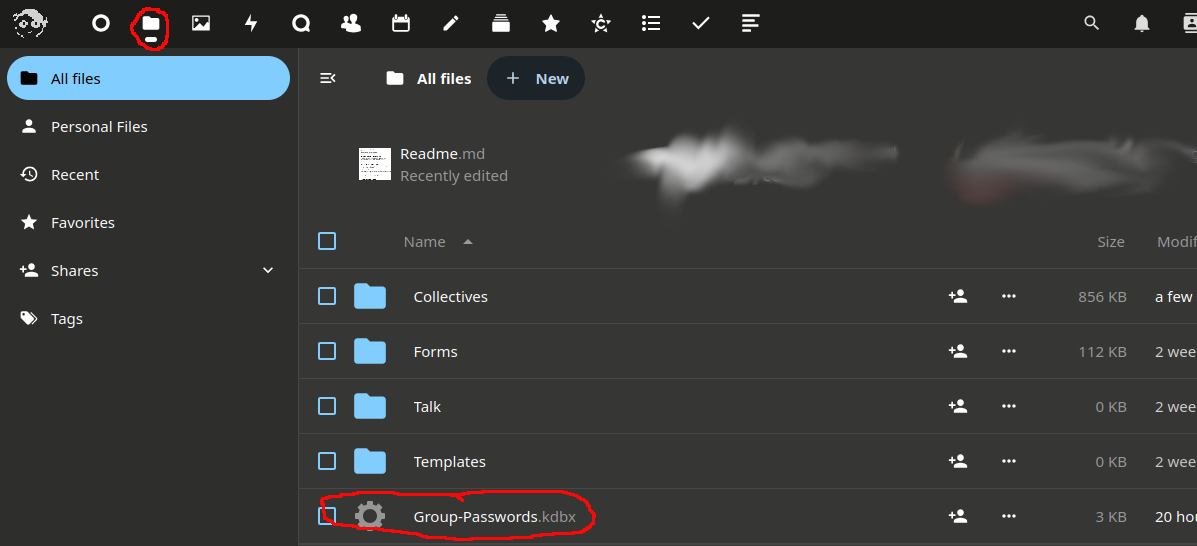
Share file
- Click on the
Shareicon (or onDetailsunder the three dots):

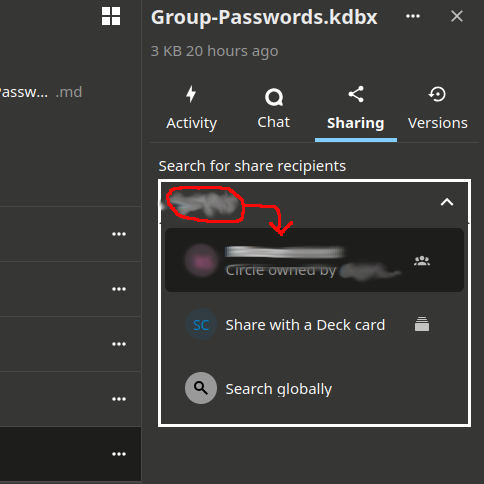
- Enter the name of the team in the search field and select the team (the name may need to be written out in full):
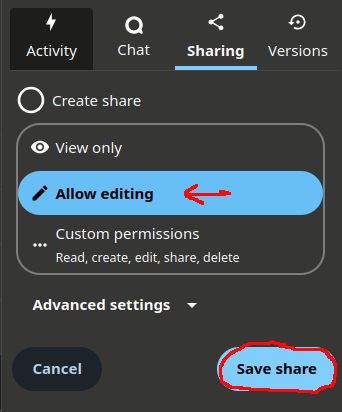
- Give the group editing rights (otherwise the team members will not be able to edit the file, which is necessary, if they should be able to add, or change passwords e.g.):
Here you can now see who has access to this resource:
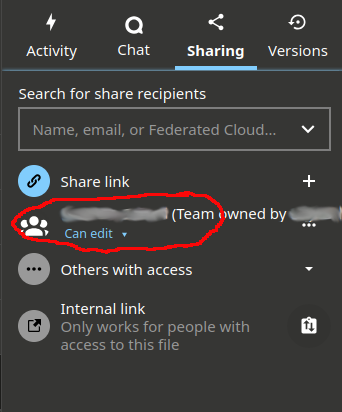
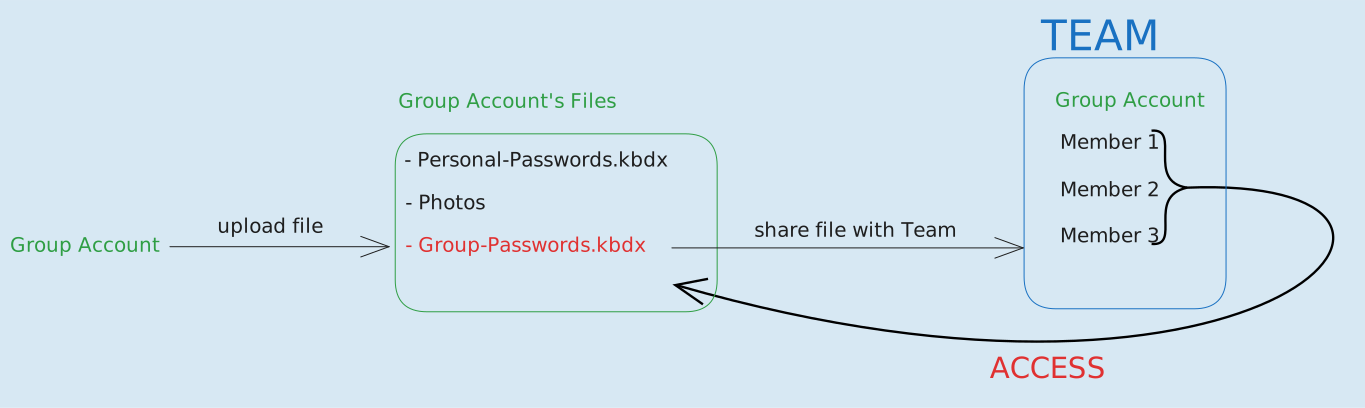
All team members should now have access to this database in the files of their own accounts. (See this graphic, that explains how shared files are accessed from different accounts)
Open shared database
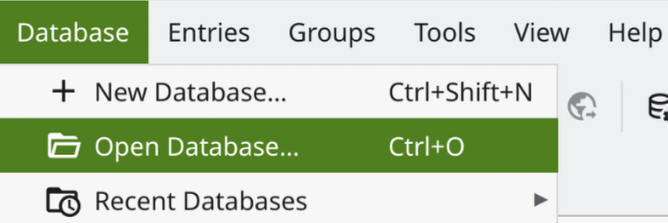
- In KeePassXC, select
Open databasein the bar at the top left.
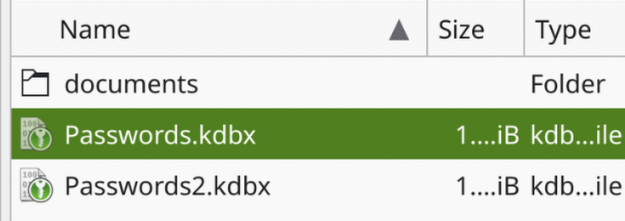
- In the window that opens, select the shared database from the Cloud folder.
Feedback: You have feedback for esc-it.org? Feel free to use our short feedback form.