Nextcloud
Nextcloud is often used as a privacy-preserving alternative to Google Drive, iCloud or other commercial Cloud providers. Nextcloud is open-source software that can be installed (hosted) by anyone on their own server. Solidarity-based technology collectives sometimes operate their own “instances.” “Instances” are the individual Nextcloud installations, e.g., those of different groups/associations/companies, etc. Depending on the settings of the respective instance, the individual Nextcloud is completely “self-sufficient,” meaning it has nothing to do with other instances.
Nextcloud can also be an attractive tool for political groups to organize their work with shared passwords, calendars, documentation, pads, etc.
Account management
Source: https://wiki.systemli.org/howto/nextcloud/gruppen
If you want to use the cloud as a group, the problem arises as to which user owns the shared data (documents, calendars, deck boards, etc.). In most cases, we recommend the use of teams for groups.
Teams
- Each member of your group gets a personal account.
- In addition, you create a group account as an admin, which is managed by several people.
- Use the group account in the Collectives app (if available) to create a collective for the group.
- Add all personal accounts under
Manage members. - If necessary, grant admin rights to individual accounts.
- Next to “Teams,” click on the “+” and add a description.
- Add all personal accounts under
Technical detail: Why not in Contacts?
Technical detail: Why not in Contacts?
You could also create the team under Contacts, but then the team would belong to you, which we want to avoid, as described below. If the Collectives app is not available, create a team under Contacts, but keep in mind the problems with this
Now you have created a collective “team” (with the group account). From now on, you can share pretty much everything you do in Nextcloud with this team: files, calendars, Kanban boards (Deck app), polls, etc.
However, there is one thing to keep in mind: Ownership. All files (including calendars, Kanban boards, etc) always belong to the account that created them! Even if these resources (technical term) are then shared with the entire team, they still belong to the creator account.
If the creator account of a resource is suddenly deleted, all files belonging to that account will also be deleted!
It is therefore highly advisable to create all shared resources with the group account and share them with the team from there.
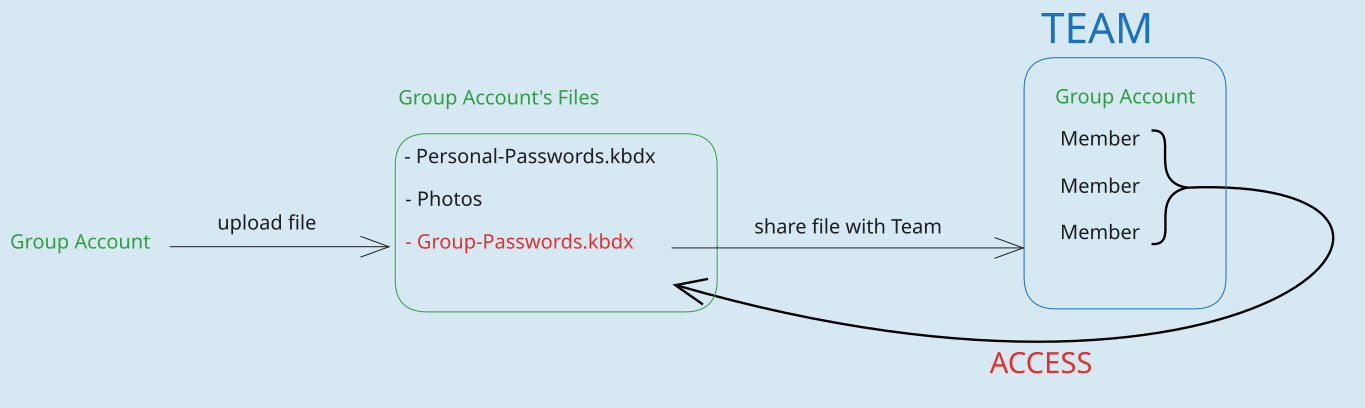
The graphic above shows that the group account uploads a password database to its files and then shares this file with the team. They can then access this file.
This makes it easy to add or remove people from your team/collective later on. You don’t have to share all resources again for each new person. You can also easily pass on the administration of the admin account, and it’s no problem if the original admins become inactive.
Conversely, individual accounts can be removed from the team with a single click, so that they no longer have access to group resources.
Transfer ownership
If you ever lose access to the group account, you can transfer ownership of a file created from your personal account to the group account. Nextcloud provides its own instructions for this.
- However, the transfer must always be confirmed by the group account (to which ownership is being transferred) before it takes effect.
- Experience has shown that it can take a few minutes for the group account to receive the confirmation notification. You may therefore have to wait a little while.
Feedback: You have feedback for esc-it.org? Feel free to use our short feedback form.